
I have used Find My since Apple first bolted location sharing onto iPhones, and for most of that time the feature had one glaring gap. You could share your location with someone, and you could stop sharing your location with someone, but there was no quiet middle ground. If you wanted a break from a nosy relative or you were trying to plan a surprise, your only option was to switch sharing off completely, which usually triggered a notification and an awkward conversation. iOS 27 finally fixes that, and understanding how Hide My Location works is the key to using Find My the smart way going forward.
I have been testing the iOS 27 betas on my own devices for weeks now, moving between an iPhone and an Apple Watch, and I want to walk through exactly what changed, why it matters, and how you can use it without creating trust problems in your own relationships. This is genuinely one of the more practical additions Apple has made to Find My in years, and once you understand how Hide Your Location works, you will probably find a use for it within the first week.
What “Hide Location” Actually Does
Let’s start with the basics. In the People tab of Find My, tap on someone you already share your location with, and under the “My Location” section, you will now see a new option labeled Hide Location. Tap it, confirm in the pop-up, and your location vanishes from their view. On their end, your entry in Find My shows “No Location Found” along with a small loading icon, as if your phone briefly lost its GPS signal.
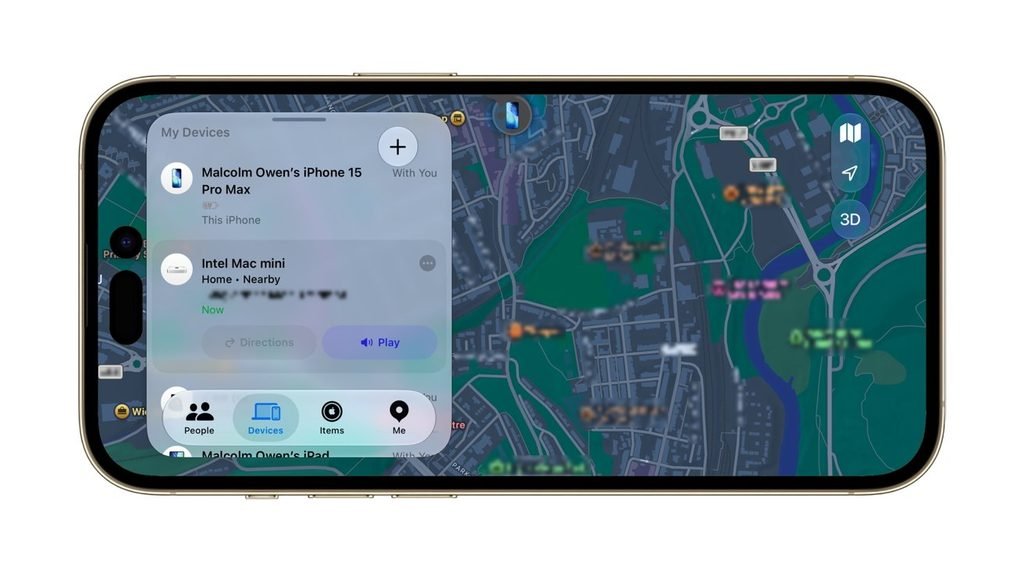
That is really the heart of how Hide Your Location works. It does not delete your sharing arrangement, it does not send any alert to the other person, and it does not require you to explain yourself. It is a soft pause rather than a hard stop. When the hidden period ends, which Apple has set at twelve hours by default in the current betas, your real location quietly reappears without you having to do anything.
This is different from turning off location sharing outright. If you turn off sharing with someone entirely, you have to turn it manually back on later, and depending on your settings, that person may notice the change. Hiding your location is temporary by design, and that temporary nature is what makes it useful in everyday situations rather than something reserved for rare occasions.
Why Apple Built This Feature
Apple has been fairly direct about the motivation here, and it comes down to something most of us have actually lived through: surprise planning. If you are shopping for an engagement ring, picking up a surprise cake, or driving somewhere to set up a birthday party, the last thing you want is for the person you are sharing your location with to glance at Find My and see you sitting outside a jewelry store or a party supply shop three days before their birthday.
Before iOS 27, your only real option was to turn off sharing and hope nobody asked why. Now you can understand how Hide My Location works and use it for exactly this kind of moment without anyone being tipped off. I tested this myself before my wife’s birthday this year, hiding my location for a few hours while I picked up a gift, and she genuinely had no idea anything was different on her end. Her Find My just showed the same generic “no location found” message that pops up occasionally due to normal connectivity hiccups.
The Honest Conversation About Misuse
I would be doing you a disservice if I did not address the obvious tension here. Any feature that lets you hide your location without notifying someone can be used for reasons that have nothing to do with surprise parties. Online discussion around this feature since the first developer beta has included plenty of people pointing out that it could be used by someone trying to deceive a partner about their whereabouts.
That is a fair concern, and I do not think Apple can fully engineer their way around it. But it is worth remembering that people who want to hide their location from a partner already had ways to do that before iOS 27, whether by turning off sharing entirely, using a different device, or simply not enabling location sharing in the first place.
What is actually new is not the ability to hide where you are; it is the convenience and reversibility of doing so. If you are in a relationship where trust and location visibility matter, the way hide your location works should really be something both partners understand together, ideally as a shared feature you use to protect surprises from each other, not as a way to deceive.
How to Turn On Hide Location Step by Step
Getting this working on your iPhone is straightforward once you know where to look. Open the Find My app and tap the People tab at the bottom. Choose the specific person you want to hide your location from, since this works on a person-by-person basis rather than as a blanket toggle. Scroll down on their contact card until you see the Hide Location option, tap it, and confirm through the pop-up that appears.
Once activated, the button relabels itself to Unhide Location, so you always know at a glance whether it is currently active. If you change your mind early, tapping Unhide Location restores your real location immediately, no waiting required. This granular, per-person control is a meaningful upgrade because it means you do not have to hide your location from your entire family to keep one person in the dark about a surprise.
Location Sharing on Apple Watch Gets the Same Treatment
One detail that a lot of coverage glossed over is that this is not limited to the iPhone. With watchOS 27, Apple has merged what used to be three separate apps, Find Devices, Find Items, and Find People, into a single unified Find My app that mirrors the iPhone experience. If you understand how hide your location works on your phone, the Watch version will feel immediately familiar.
On your wrist, you open the new Find My app, make sure you are in the People section using the dual person icon in the corner, tap the relevant contact, scroll down, and tap Hide Location just like on iPhone. This matters more than it might seem, because plenty of people leave their phone at home or in a bag during the day and rely on their Watch for quick interactions. Having the same privacy control available there closes a gap that would otherwise make the feature feel incomplete.
Flexible Sharing Durations Beyond Hide Location
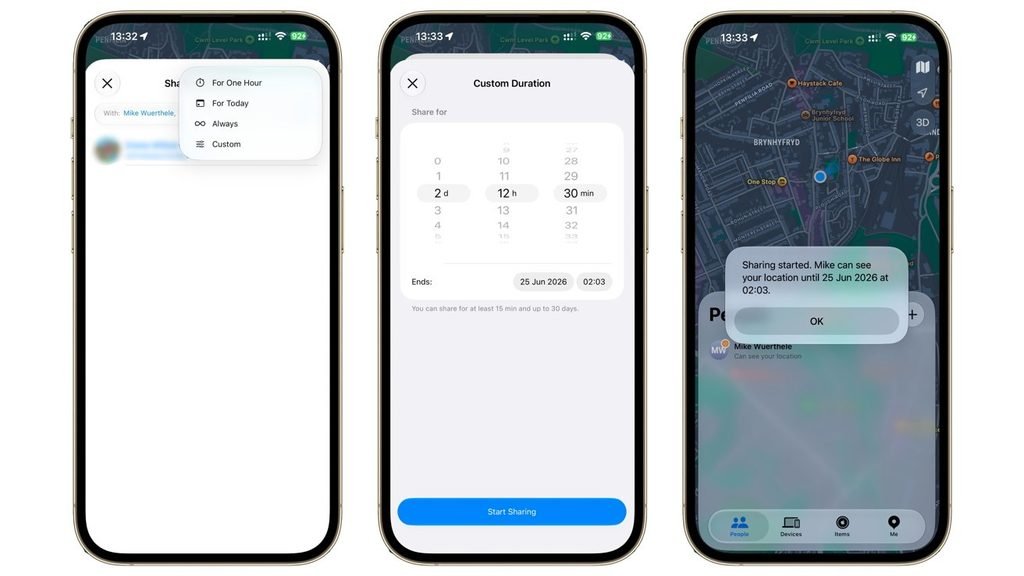
Hiding your location is only one half of what changed in iOS 27’s Find My. Apple also expanded how long you can share your location for in the first place. Previously, sharing came with only three basic choices: one hour, until the end of the day, or indefinitely. That worked for simple situations but was clumsy for anything in between.
Now you can set a custom duration using rolling dials for days, hours, and minutes, with a range stretching from as short as fifteen minutes up to a full thirty days. This is genuinely useful outside of the hide your location conversation entirely. If you are meeting a friend at an airport and want to share your location just for your travel window, or you are letting a babysitter track your location for the evening without leaving sharing on indefinitely, this new flexibility gives you exact control over the timeframe instead of forcing an all-or-nothing choice.
When a set sharing period ends naturally, you get a notification letting you know sharing has expired with that person. This is a useful contrast worth noting, because it highlights how hide your location works differently. A scheduled sharing period ending is announced to you, the sharer, while hiding your location produces no notification to the person you are hiding it from. The asymmetry is intentional, and once you see both features side by side, the design logic behind each one becomes much clearer.
The Design Refresh Around Find My in iOS 27
Beyond the functional changes, Find My picked up a visual overhaul that matches the rest of iOS 27. Apple introduced its Liquid Glass design language broadly across the operating system, and Find My did not skip it. You will notice more translucency in the interface, updated font sizing throughout the People and Devices tabs, and a redesigned circular plus icon in the top right corner for adding new people or items.
There is also a subtler change to the tab bar icons and support for a proper landscape mode, something that previously felt like an afterthought in Find My. None of this changes how Hide Your Location works under the hood, but it does make the app feel more consistent with the rest of the operating system, which matters if you are someone who spends real time in Find My managing a family sharing setup or tracking AirTags.
Practical Scenarios Where This Feature Shines
Having used this for a while now, a few use cases stand out beyond the obvious surprise party example. If you are running errands to buy a gift, hiding your location keeps the surprise intact without you having to remember to turn sharing back on afterward, since it reverts automatically.
If you are attending a job interview or a medical appointment you are not ready to discuss with family yet, a temporary hide gives you privacy for a few hours without a permanent change to your sharing arrangement. If you want a mental health day where well-meaning relatives are not tracking you, this offers a low-friction way to get that space back for half a day.
In every one of these cases, understanding how hide your location works means recognizing it as a pause button rather than an off switch. That distinction is what separates it from simply turning off location sharing, and it is the reason I think most people will end up finding this genuinely handy rather than controversial.
A Few Limitations Worth Knowing
The current beta implementation fixes the hide duration at twelve hours before it automatically reverts, and as of this writing, there is no way to customize that window the way you can with normal sharing durations. If you want your location hidden for longer, you will need to reactivate it once it expires manually, or tap Unhide Location earlier if your plans wrap up sooner than expected.
It is also worth noting that this is a one-way pause specific to a single relationship in your Find My network. Hiding your location from one contact does not affect what any other contact sees. If you share your location with five people and only want to keep one of them in the dark, the other four continue seeing your real location the entire time.
Final Thoughts From Someone Who Has Actually Used It
After weeks of testing, my honest take is that this is a small feature with an outsized impact on daily usability. Apple did not reinvent Find My in iOS 27, and if you read general Tech News coverage of this release, most of the attention understandably went to Siri’s AI overhaul and the Liquid Glass redesign spread across the entire operating system.
But for anyone who regularly shares their location with family or a partner, learning how to hide your location works is worth five minutes of your time, because it solves a real annoyance that has existed in Find My for years without a proper answer.
The combination of granular hiding, flexible custom sharing durations, and a matching experience on Apple Watch makes location sharing in iOS 27 feel considerably more mature than it did in iOS 26. Use it thoughtfully, be upfront with the people you share your location with about how and why you use it, and it becomes a genuinely useful tool rather than a source of suspicion.