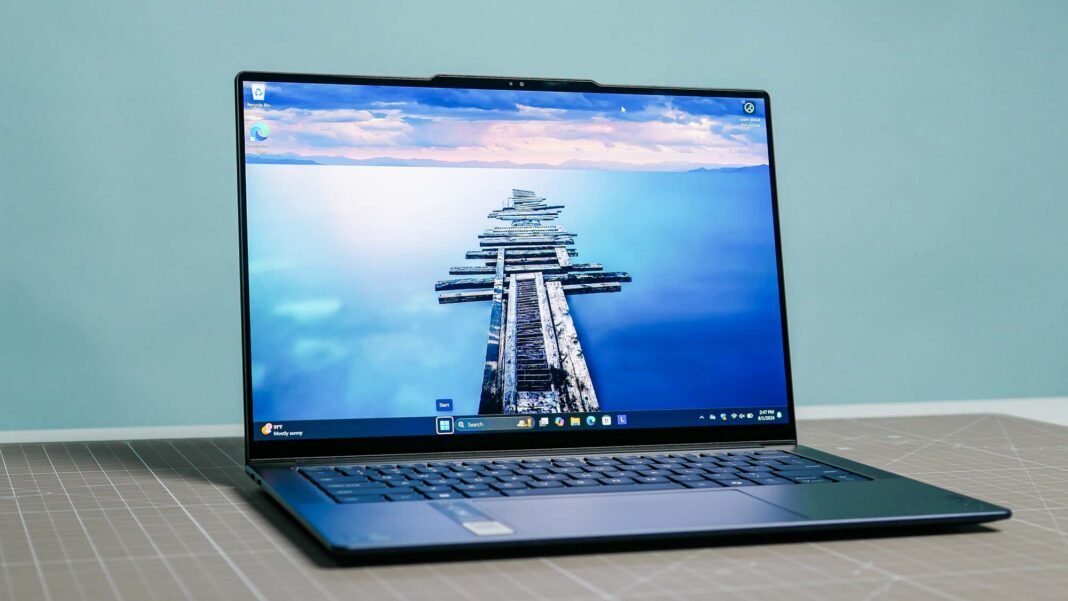

If your laptop feels sluggish, you can speed it up today with five free, built-in tweaks that take minutes and require no new hardware. These practical smart steps target the most common causes of slowdowns like startup bloat, background processes, storage clutter, power settings, and visual effects so you can improve laptop speed without installing anything or paying for software.
Why Your Laptop Slows Down Over Time
Laptops slow down mainly because too many programs launch at startup, background services consume RAM and CPU, temporary files fill the drive, and power or visual settings prioritize looks over performance. Understanding these bottlenecks helps you apply the right fix to improve laptop speed instead of guessing or downloading dubious “speed up” tools that often make things worse.
1: Disable Unnecessary Startup Programs
The fastest way to improve laptop speed is to stop apps you don’t need from launching when Windows starts. Many communication apps, cloud sync tools, and updaters set themselves to run at login, which drags down boot time and leaves them eating memory in the background.
Open Task Manager by pressing Ctrl + Shift + Esc, then go to the Startup apps tab. Sort by Startup impact and disable anything marked High that you do not need immediately after login, such as Spotify, Discord, Steam, or OneDrive if you rarely use it. You can also manage startup apps in Settings under Apps, then Startup on Windows 10 and 11. After disabling a handful of high-impact items and restarting, most users notice a clear improvement in how quickly the desktop appears and how responsive the system feels, which directly helps improve laptop speed.
2. Clear Temporary Files and Enable Storage Sense
Accumulated temporary files, update leftovers, and old downloads can choke your drive and slow everyday tasks. Windows includes free tools to clean this clutter safely, which is a reliable way to improve laptop speed without third-party software.
Search for Disk Cleanup in the Start menu, select your main drive, and remove temporary files, previous Windows installations if you do not plan to roll back, and delivery optimization files. Then enable Storage Sense by going to Settings, System, Storage, and turning on Storage Sense with automatic cleanup of temporary files and files in the Recycle Bin. A cleaner drive means faster file indexing, quicker app launches, and more headroom for updates, all of which help improve laptop speed during daily use.
3: Adjust Power Mode for Performance
Windows often defaults to a balanced or battery-saving power plan that limits CPU speed to extend battery life, which can make your laptop feel slower even when plugged in. Switching to a performance-oriented power mode is a simple, reversible tweak that can noticeably improve laptop speed.
Click the battery icon in the taskbar and move the slider to Best Performance, or go to Settings, System, Power and battery, then set Power mode to Best Performance. On older Windows versions, open Control Panel, Power Options, and choose the High performance plan. This change allows the processor to run at higher speeds for longer bursts, which helps improve laptop speed when opening apps, browsing with many tabs, or working with documents and media.
4: Reduce Visual Effects for Better Responsiveness
Windows uses animations, shadows, and transparency to look modern, but these effects consume GPU and CPU resources that older or budget laptops cannot spare. Turning down visual effects is a classic, safe method to improve laptop speed, especially on machines with integrated graphics or limited RAM.
Search for “Adjust the appearance and performance of Windows” in the Start menu, then in the Performance Options window choose Adjust for best performance. If that looks too plain, manually re-enable only the essentials like Smooth edges of screen fonts and Show thumbnails instead of icons. The result is snappier window switching, faster menu responses, and less stutter when multitasking, which together improve laptop speed in everyday workflows.
5: Restart Regularly and Close Background Apps
Many users leave their laptops in sleep mode for days, which allows background processes, memory leaks, and stuck updates to accumulate and degrade performance over time. A proper restart clears RAM, stops runaway services, and applies pending updates, making it one of the simplest ways to improve laptop speed.
Make it a habit to fully restart your laptop at least once a week, and close browser tabs and apps you are not actively using. Check the system tray for hidden icons and quit programs you do not need running constantly. You can also open Task Manager, go to the Processes tab, and end tasks that are using high CPU or memory without a clear reason. Consistent restarts and mindful app management prevent gradual slowdowns and help maintain the gains you achieve when you improve laptop speed using the other tricks.
My Personal Opinion
You do not need new hardware or paid software to improve laptop speed. By disabling unnecessary startup programs, clearing temporary files with Disk Cleanup and Storage Sense, setting power mode to Best Performance, reducing visual effects, and restarting regularly while closing unused apps, you remove the most common bottlenecks that make laptops feel slow. Apply these five free tweaks today and you will notice faster boot times, snappier app launches, and smoother multitasking, proving that consistent, simple maintenance is the most reliable way to improve laptop speed for the long term.