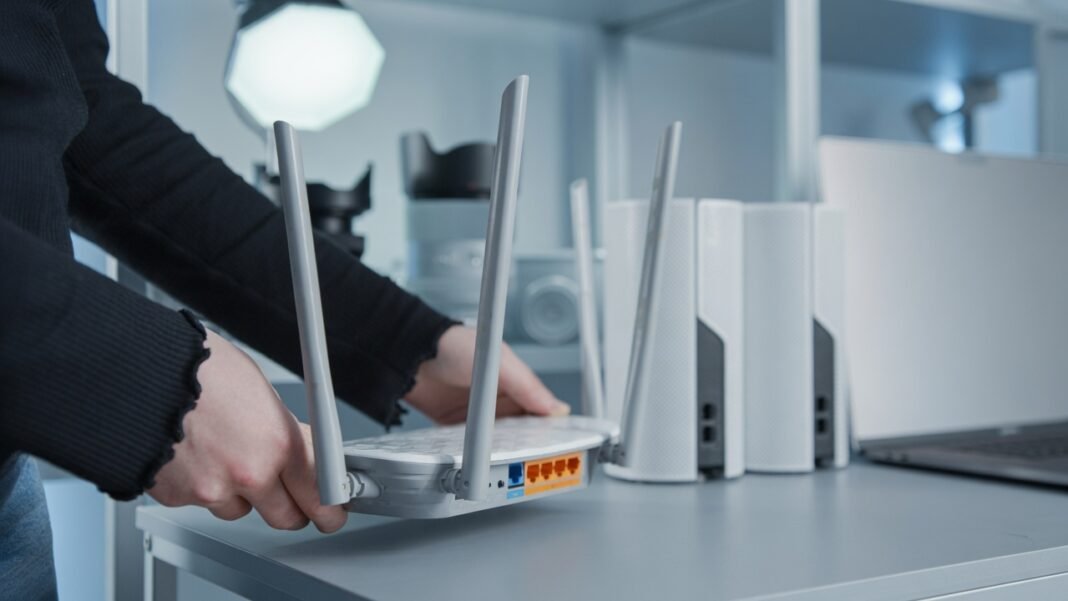

If your Wi-Fi fades in the far bedrooms or the basement office, you are not alone. Wide homes stretch signals thin, but five targeted upgrades can improve Wi-Fi signals across every room without replacing your internet plan.
Wi-Fi is radio energy that weakens with distance and struggles to punch through thick walls, metal appliances, and multiple floors. In a wide floor plan, the router often sits near one edge, so the far end receives a faint signal that drops speeds and causes buffering. The most reliable path to improve Wi-Fi signals in large spaces is to shorten the distance between your devices and a strong access point, then remove interference that steals airtime.
1. Move the router to a central, elevated position
The fastest free win to improve Wi-Fi signals is better placement. Place the main router as close to the geometric center of the home as practical, ideally on the middle floor in a wide house. Elevate it to shelf height and keep it in the open rather than inside a cabinet, behind a television, or on the floor. This single change often improves Wi-Fi signals in distant rooms because the signal no longer has to cross the entire width of the house from a corner.
Keep the router away from large metal objects, refrigerators, and dense masonry that reflect or absorb radio waves. If your internet line enters at one end of the house, consider running a short Ethernet cable to reposition the router more centrally, or use that Ethernet later for a wired access point. Many users report that moving the router just a couple of meters toward the center helps improve Wi-Fi signals in upstairs bedrooms and far corners.
2. Upgrade to a mesh Wi‑Fi system
Mesh systems are built to improve Wi-Fi signals across wide and multi‑story homes by deploying multiple nodes that share one network name and hand off devices smoothly. Instead of one router shouting across the house, several nodes create overlapping cells of strong coverage so you can improve Wi-Fi signals in every wing without manual switching.
For wide homes, choose a three‑node kit or a system rated for your square footage, and place nodes roughly halfway between the main router and known dead zones. Current top picks for large homes include the TP‑Link Deco BE63 (Deco 7 Pro) and other Wi‑Fi 7 or Wi‑Fi 6E mesh systems that offer strong backhaul and multi‑gig ports. A well‑planned mesh layout is one of the most effective ways to improve Wi-Fi signals in wide floor plans while keeping setup simple through a mobile app.
3. Add a wired access point
If your house has Ethernet cabling, use it. Connect a dedicated Wi‑Fi access point or a mesh node in Ethernet backhaul mode to a wall jack in the distant wing or basement. Wired backhaul gives that node full internet speed and lets you improve Wi-Fi signals at the far end without depending on wireless hops. Configure the access point with the same network name and password as the main router so devices roam seamlessly.
If pulling new cables is not realistic, consider Powerline adapters that use your home electrical wiring to carry data to a remote node, then broadcast Wi‑Fi locally. While Powerline performance varies by wiring quality, it can still improve Wi-Fi signals in a far office or guest suite where the main signal barely reaches. The key is to place the remote node in the open, at height, and near the area that needs coverage so you improve Wi-Fi signals where people actually use devices.
4. Use a high‑quality Wi‑Fi extender as a targeted bridge
When a full mesh system is not in the budget, a modern Wi‑Fi extender can improve Wi-Fi signals in one or two stubborn rooms. Plug the extender halfway between the router and the dead zone, in a location where it still receives a strong signal, then let it rebroadcast into the weak area. The TP‑Link RE715X is a strong 2026 choice for large homes because it balances speed and range better than older extenders.
To maximize results, keep the extender on the same floor as the devices it serves and avoid placing it behind large appliances or inside closets. Some extenders create a separate network name by default, so rename it to match your main network if your devices support seamless roaming, or keep it separate and manually connect devices that need it. Used correctly, an extender can improve Wi-Fi signals in a far bedroom or home office without the cost of a full mesh upgrade.
5. Reduce interference and tune radio settings for range
Congested airwaves and suboptimal settings can silently degrade performance, so cleaning up interference helps improve Wi-Fi signals even without new hardware. Log in to your router and ensure both 2.4 GHz and 5 GHz bands are enabled, then connect distant devices to 2.4 GHz for better wall penetration while keeping nearby devices on 5 GHz for speed. On the 2.4 GHz band, switch to channel 1, 6, or 11 and pick the least crowded option in your neighborhood to reduce neighbor interference.
Update your router firmware, enable quality of service (QoS) to prioritize video calls and streaming, and reboot the router after making changes. Turn off unused guest networks or legacy modes if your devices do not need them, and keep smart home hubs and microwave ovens away from the router to minimize noise. These small tweaks often improve Wi-Fi signals noticeably, especially in wide homes where every decibel of headroom matters.
Putting it together for whole‑home coverage
By using above said smart solutions, Start by repositioning the router to a central, elevated spot to immediately improve Wi-Fi signals across the main living areas. If dead zones persist in the far wing or basement, add a wired access point or a mesh node to extend strong coverage exactly where you need it. For tighter budgets, place a modern extender halfway to the problem room to improve Wi-Fi signals without rewiring. Finally, tune channels, bands, and firmware settings to reduce interference and squeeze out extra range so your efforts to improve Wi-Fi signals deliver stable speeds all day.