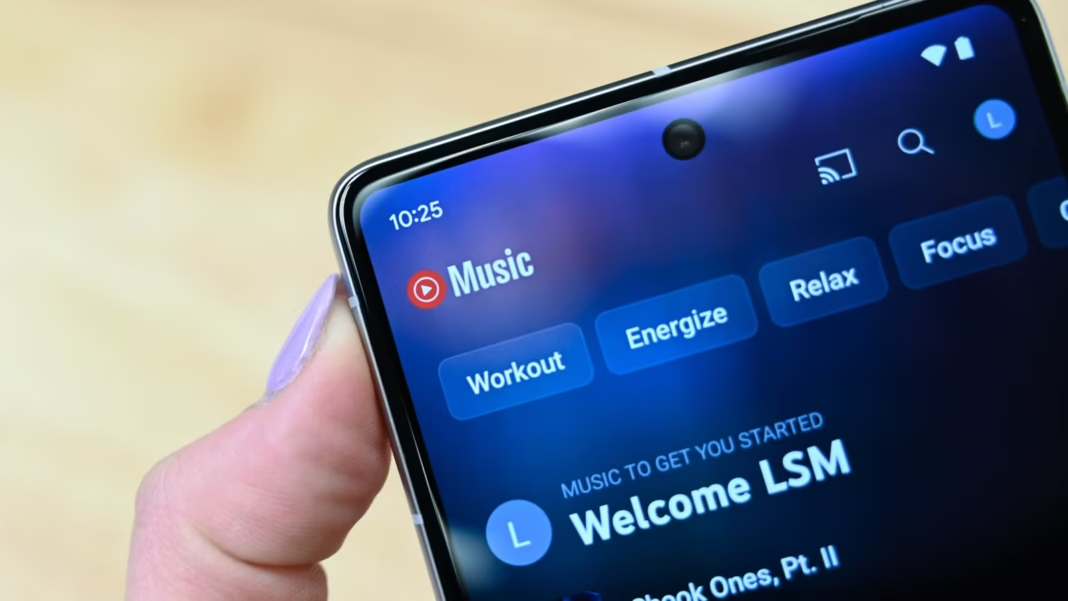

YouTube Music is more than a basic music streaming service. Its less obvious tools can help you organize a personal collection, discover songs when you remember only a melody, improve offline listening, and protect your recommendations. If you already use YouTube Music regularly, these Editor’s picked five YouTube Music features are worth trying at least once.
The availability of some YouTube Music features can vary by device, account type, region, or app version. Before trying them, update the app and check that you are signed in to the correct Google account.
1: Upload Your Personal Music Collection
One of the most useful YouTube Music features is the ability to upload tracks that are not available in the regular catalog. This can include rare recordings, independent releases, personal mixes, live performances, or music purchased from another source.
You can upload music through the web version of YouTube Music. After the files are added to your library, they can be accessed on other devices signed in to the same account. YouTube Music supports up to 100,000 uploaded songs, making it practical for people who have built a large digital collection over the years.
Uploaded music is separated from the standard YouTube Music catalog, which helps you keep personal files organized. You can also create playlists that combine uploaded tracks with songs from YouTube Music. This makes the service more flexible than a platform that only offers music from its licensed catalog.
Another useful option is Smart Downloads. This feature automatically downloads music based on your listening habits, allowing you to continue listening when you have limited connectivity. To activate it, open YouTube Music settings, select Downloads and storage, and turn on Smart Downloads.
Smart Downloads work best when your phone is connected to stable Wi Fi, especially if you want to avoid using mobile data. The downloaded selection can also change over time, so your offline library does not remain stuck with the same songs.
2: Search With Lyrics, Emojis, and Humming
Traditional music searches usually require an artist name, song title, or album name. YouTube Music features make discovery easier when you remember only a lyric, mood, symbol, or melody.
You can type a line of lyrics into the search bar and let YouTube Music identify songs containing similar words. This is especially helpful when you remember the chorus but have forgotten the artist. It can also help you find alternate versions, covers, or related playlists.
Emoji search is another entertaining feature. Try entering symbols connected to a mood or activity, such as a birthday cake, a rainy cloud, or a sad face. YouTube Music may return songs, playlists, or videos associated with that idea. The results will not always be perfect, but emoji searches can lead to music you might not have found through conventional keywords.
Hashtags can also be used to explore themes and music categories. Searching for a suitable hashtag can reveal songs, playlists, and videos connected to a particular style, event, or mood.
Among the most interesting YouTube Music features is Sound Search. Tap the waveform icon in the search area and sing, hum, or play a melody. The service then attempts to match it with songs and displays likely results with match percentages. It may not recognize every tune, but it is useful when the song name has completely disappeared from your memory.
3: Explore Seasonal Music Recaps
Many listeners know about annual music summaries, but YouTube Music features also include seasonal recaps in some accounts and regions. These summaries show the songs, artists, and listening patterns that shaped a particular period.
A seasonal recap can be more revealing than an annual summary because musical preferences often change throughout the year. You may listen to energetic music during one season, instrumental playlists while working during another, and nostalgic songs during a holiday period.
YouTube Music may also create a playlist based on your most-played music during the selected period. You can save that playlist and return to it later, even after your listening habits have changed.
Recaps depend on having enough listening activity. Seasonal summaries generally require several hours of listening, while year-end summaries require more extensive activity across the year. If a recap does not appear, check whether you have used the service long enough and whether your listening history is paused.
These YouTube Music features can also be useful for content creators, playlist curators, and music fans who want to understand their preferences more clearly. Instead of guessing which artists you played most often, you can use your listening data to identify genuine patterns.
4: Set a Sleep Timer and Music Alarm
A sleep timer is one of the simplest YouTube Music features, yet many users overlook it. If you listen to music, ambient sound, or podcasts before sleeping, the timer can stop playback automatically after a selected period.
To use it, start playing a track or playlist, open the three-dot menu on the playback screen, choose Sleep timer, and select a duration. Some versions also allow playback to stop at the end of the current song.
This feature is helpful for people who fall asleep while listening through headphones or a speaker. It can reduce unnecessary battery use and prevent an entire playlist from playing throughout the night. A timer is also a practical option for calming music, meditation sessions, and bedtime routines.
Android users with the official Google Clock app may also be able to use YouTube Music as an alarm sound. Create or edit an alarm in Google Clock, select the ringtone option, choose YouTube Music, and then select a song or playlist. This alarm integration generally requires YouTube Music Premium.
Using a familiar song as an alarm can make waking up feel more personal, although it is sensible to choose a track that begins clearly rather than a quiet intro. A gentle song may be pleasant, but an overly relaxing choice could make it easier to fall back asleep.
5: Turn On Restricted Mode and Manage History
YouTube Music includes Restricted Mode for listeners who want an additional filter for potentially mature content. It can be useful when children use the app or when a shared device is used by several family members.
You can usually enable it by opening your profile, entering Settings, selecting General, and turning on Restricted Mode. The setting may work at the device level, so you should check each device separately if your family uses more than one phone, tablet, or television.
Restricted Mode is not a complete guarantee that every unsuitable song will be removed. It is better understood as an additional filter rather than a replacement for supervision or a child-specific account.
Privacy controls are another group of YouTube Music features worth exploring. If another person uses your account to search for music, those searches may influence future recommendations. To reduce this effect, open Privacy and data settings and consider pausing search history or watch history.
Pausing history can help when you are exploring music outside your usual preferences. For example, you might be researching children’s songs, testing music for a video project, or listening to a genre that you do not want added to your personal recommendations.
However, remember that these controls can affect your wider YouTube account as well as YouTube Music. Review the settings carefully before enabling them, especially if you rely on YouTube recommendations for learning or entertainment.
Make YouTube Music Work Better
These YouTube Music features show how the platform can serve different listening habits. Uploading lets you preserve music that is missing from the catalog. Sound Search helps identify songs from melodies. Seasonal recaps reveal listening patterns, while Smart Downloads improve offline access. Sleep timers, music alarms, Restricted Mode, and history controls make the experience more convenient and personal.
The best approach is to try one feature at a time. Start with Sound Search when you hear an unfamiliar melody, enable Smart Downloads before a trip, or use the sleep timer tonight. After a few days, these YouTube Music features may become part of your normal listening routine rather than hidden settings you rarely remember.